Submitting Invoices Through Coupa as a Supplier
Pick the right submission method based on your invoice volume and whether you have a purchase order.
Submitting invoices through Coupa comes down to picking the right channel for the job: PO-flip, Supplier Actionable Notifications, AI upload, or a blank invoice.
What Coupa's supplier portal is
The Coupa Supplier Portal, or CSP, is a free, cloud-based platform suppliers use to manage purchase orders, submit invoices, and track payment status with any buying organization that runs on Coupa. One login gives you a single dashboard for orders, invoices, catalogs, and shipping notices, so you can check where an invoice stands without picking up the phone or emailing someone in accounts payable and waiting.
Buyers like Coupa because it gives them an automated audit trail and a matching system built around their own approval and compliance rules.
Getting your account ready before you submit anything
Before any invoice gets submitted, the account behind it needs to be in order. Registration starts with an invitation email from the buyer. No invitation, no access, so if one hasn't shown up, contact the buyer directly and ask for it. Whoever registers first at a company becomes the account administrator by default, responsible for managing users and settings going forward.
Multi-factor authentication is now required to reach invoicing and other sensitive parts of the CSP. Options include SMS codes, an authenticator app, a backup email address, or, in recent releases, a passkey tied to your device or browser. If that passkey gets lost, the backup codes downloaded during initial setup can be handed to Support so an admin can temporarily turn it off.
Buyers decide which submission options are turned on for each supplier. Some buttons, like Create Blank Invoice, may simply sit inactive until the buyer flips a switch on their end. The buyer's configuration is doing what it was set up to do.
The four submission channels
Coupa gives suppliers four ways to get an invoice in front of a buyer, and the right one depends entirely on your situation, not on preference. Picking the wrong channel for the job either creates extra friction or just doesn't work.
PO-flip, done in a browser, lets a supplier log into the CSP and convert an open purchase order directly into an invoice, with most fields pulled straight from the PO. It fits suppliers with moderate-to-high invoice volume, or anyone who wants full control over the invoice before it goes out. It requires an active PO and a completed Legal Entity and Remit-To address on file.
Supplier Actionable Notifications, or SAN, skip the CSP login entirely: the supplier acts directly on a PO email sent by the buyer. This fits low-volume suppliers, or anyone who gets the occasional PO and wants the fastest, simplest path without logging into anything.
The AI Invoice Upload, known internally as InvoiceSmash, lets a supplier upload a PDF of their own invoice, which Coupa's AI then turns into a structured draft inside the CSP. This is built for suppliers who already generate invoices in their own system and don't want to re-key that data into Coupa by hand. It's available to every supplier in the CSP, no special arrangement with the buyer required, and the draft invoice gets created in seconds. For a small supplier who previously had to choose between manual entry and a pricey cXML integration, this closes that gap.
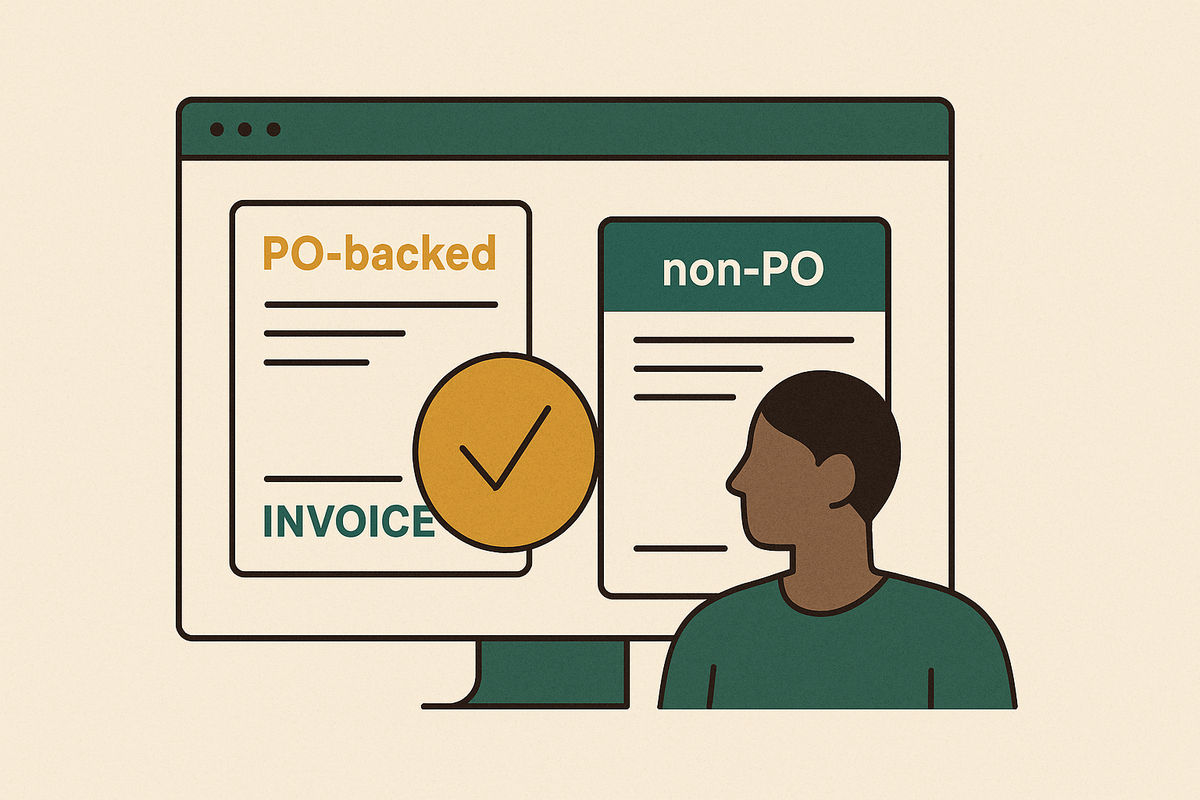
A blank invoice, created without a backing PO using the Create Blank Invoice button on the Invoices tab, covers services or situations where no PO was issued, or where the buyer has approved non-PO invoicing. If that button sits grayed out, the fix isn't technical, it's a phone call: ask the buyer to turn non-PO invoicing on for your account. A related option, Create Invoice from Contract, works the same way against an approved contract.
Finally, Excel or CSV submission through sFTP suits high-volume suppliers who already export their data but don't have a full system-to-system integration in place. Either the buyer sends a spreadsheet template to fill out and return, or the supplier uploads a CSV file directly. The buyer has to set this method up first, so confirm with them which submission paths are actually open to you before building a process around one.
Step-by-step: creating and submitting an invoice via PO-flip in the CSP
PO-flip is the most hands-on, most controlled way to submit, and it follows the same sequence every time. Following it in order prevents most data-entry mistakes, and you can save as a draft at any point and come back later, so there's no pressure to finish in one sitting.
Start on the Orders tab in the main menu. If your account is connected to more than one customer, pick the right one from the Select Customer dropdown in the top right corner first, then find the PO you want to invoice against in the Purchase Orders table.
Next, click the Create Invoice icon, shown as yellow or gold coins, in the Actions column next to that PO. (You can also open the PO itself and click Create Invoice from there.)
From there, add or select an Invoice From address, a Remit-To address, and a Ship From address. The popup also shows how the buyer is set up to pay, whether by bank account or credit card, and you may see more than one Remit-To address depending on the payment type.
Most of the invoice fields fill in automatically from the PO. Two do not: the Invoice Number always has to be typed in by hand, and the Invoice Date may or may not auto-populate depending on the platform (on SAP Ariba Network, for instance, it fills in automatically). Fill in every field marked with a red asterisk, since those are mandatory.
Finally, click Submit to send the invoice to the buyer, or save it as a draft if you're not ready yet. If it's not there, it didn't go through.
For consolidated invoices, there's a hard cap of 500 invoice lines, and going over triggers an error. If you need to add shipping charges, you can do it at the bottom of the invoice or at the line-item level, but check with the buyer first on which they want.
Submitting invoices with the AI Invoice Upload (InvoiceSmash)
The AI Invoice Upload cuts out manual data entry. Upload a PDF from your own billing system, and Coupa's AI turns it into a structured draft invoice inside the CSP.
The process is short: log into the CSP, go to the Invoices tab, choose the AI upload option, upload the PDF, and review what the system pulled out before hitting submit. The free tier covers up to 10 uploads, though what you actually see depends on both your settings and the buyer's, unlimited use needs a Coupa Advanced subscription, and each upload uses up a token. The draft itself gets built in seconds, which is the whole appeal for anyone generating invoices in their own ERP or accounting software who used to be stuck choosing between tedious re-keying and an expensive cXML setup.
The step that matters most here isn't the upload; it's the review. Upload a clean, text-based PDF where possible, since it extracts more reliably than a scanned or image-heavy file.
Status and hold requirements
Once an invoice is submitted, it locks. That one rule shapes everything that follows, so it's worth understanding before anything else. The lock exists to protect the integrity of invoice processing, and it takes effect the moment you hit submit, no grace period. If a mistake turns up afterward, the supplier has to ask the buyer to dispute or void the invoice before creating a corrected one. Another route is to issue a credit note to cancel the original and then submit a fresh invoice, so it's worth asking the buyer up front which method they'd rather use.
A Tolerance Hold happens automatically when the invoiced amount differs from the PO by more than the buyer's configured limit. An approved invoice needs nothing further from the supplier, payment follows whatever terms were agreed on. If an invoice is approved but still unpaid, that's a conversation for the customer directly, since the CSP will keep showing it as approved regardless of when payment actually lands.
The Dashboard's Transaction page shows disputed invoices, and clicking into the table opens the full list, with each invoice number linking directly to its detail page. Credit notes can only be created against invoices that are Disputed or Approved, not ones still pending or sitting in draft.
| Status | What it means | Who needs to act | |---|---|---| | Draft | Saved but not submitted | Supplier | | Submitted | Locked, awaiting buyer review | Buyer | | Tolerance Hold | Amount differs from PO beyond tolerance | Buyer | | Rejected | Buyer declined the invoice | Supplier (submit new) | | Disputed | Buyer flagged an issue | Supplier and buyer | | Approved | Cleared for payment | None (payment follows terms) | | Approved, unpaid | Approved but payment not yet received | Supplier (contact customer) |
Buyers using Coupa get a controlled audit trail and automated matching out of the deal, but that same structure means invoices can sit in manual review or get stuck behind a missing document with no clear next step for the supplier.
The errors that cause holds and rejections
Because a submitted invoice can't be touched again, catching problems before clicking submit is the only real defense, and most holds trace back to the same handful of mistakes.
File problems cause a lot of them. And the file type has to be on Coupa's accepted list: PNG, GIF, JPG, JPEG, PJPEG, TIFF, or PDF. Anything outside that list won't go through.
Amount mismatches are another frequent cause. Invoicing for more or less than the PO amount, beyond whatever tolerance the buyer has set, triggers an automatic Tolerance Hold. For partial billing against a PO, enter only the amount for that specific invoice, never the full PO value, since billing in stages means the total builds up across multiple invoices, not one. For consolidated invoices, double check that every line shares the same currency and Chart of Accounts before submitting, since a mismatch there causes an error.
Missing or incorrect details trip up plenty of suppliers too. Duplicate invoice numbers on active invoices get rejected, though a number that's been deleted by the buyer can be reused.
Setup gaps cause their own share of failures. And incomplete bank payment details, since bank name entry is now required, can delay the buyer's ability to actually pay an invoice even after it's been approved.
Multi-PO invoices bring one more risk: every line item has to be matched to the right PO line and carry the correct GL code.
Missing documentation, a W-9, a vendor form, banking verification not yet confirmed, can block that first invoice from processing even when everything else about the submission is correct, and the CSP itself displays none of it. One approach pairs AI with people who actually work collections. Buyers can walk suppliers through onboarding proactively instead of waiting for a failed submission to turn into a support ticket.
Issuing credit notes and correcting invoices after approval
Credit notes are the main tool for fixing an invoice that's already moved past submission, but they only work in specific situations and follow a set process. A credit note can only be created against an invoice that's in Disputed or Approved status, not one still pending or sitting in draft.
To start one, click Create Credit Note above the Invoices table, or use the Create Credit Note icon in the Actions column on the Orders page next to the relevant PO. A popup asks for the reason. For anything else, returns, cancellations, price adjustments, rebates, refunds, select Other, and attach a contract if one applies.
To issue the actual credit, enter a negative quantity on the relevant line. Since buyer configuration determines which correction path is actually available, confirm with the buyer ahead of time whether they'd rather see a credit note or a dispute/void.
Lingering friction points
Even an invoice submitted correctly, by the book, every field right, can still stall in ways no supplier can fix alone. Correction after submission is a one-way street: a data entry mistake on the supplier's side needs buyer action to fix, and that can mean weeks of waiting on payment for something that might take five minutes once someone on the buyer's side looks at it.
Coupa itself isn't the obstacle here, configuration is. None of that appears as a warning on screen; it causes a delay instead.
For finance teams managing accounts receivable across many enterprise customers, the actual workload behind all this, logging in, submitting, checking status, following up on holds, is driven by the sheer number of portals and adds up fast. Eric Foster, Head of Finance at Compa, had three hours blocked off every week just for portal submissions before handing that work off. That's one data point, but it tracks with the broader shape of the problem: the time cost isn't in any single invoice, it's in doing this across dozens of portals, week after week.
Invoice Butler, an AI-powered accounts receivable tool that combines automated invoice follow-up with human collections experts who log into portals like Coupa on behalf of AR teams, handles supplier portal submissions, follow-up, and resolution workflows, managing every portal, every submission, and every rejection so finance staff aren't the ones logging in. That includes the full correction loop too: navigating a hold, tracking down the right AP contact when something stalls, and handling the back-and-forth that follows a dispute. None of that replaces knowing how Coupa works. It just means fewer people have to.