Resolving Rejected Invoices in Tipalti Supplier Hub
Distinguish invoice rejections from payment rejections to fix the right problem the first time.
Tipalti Supplier Hub is where a payee lives: contact details, payment method, tax forms, and the running scoreboard of every invoice and payment in flight, making it the submission channel, the place where rejection signals show up, and both the first stop and the last stop for anyone trying to figure out why a payment hasn't landed. The documentation covers the original iFrame experience, and a new interface is rolling out gradually through 2026, though its behavior isn't yet written up anywhere public. Inside the Invoice History tab, a payee sees one of six statuses: In Process, Approved for payment, Submitted for payment, Paid, Deleted, or Disputed. Two of those statuses point to two separate failure points in the pipeline, which the next section breaks down.
Invoice rejections versus payment rejections: two different problems, two different fixes
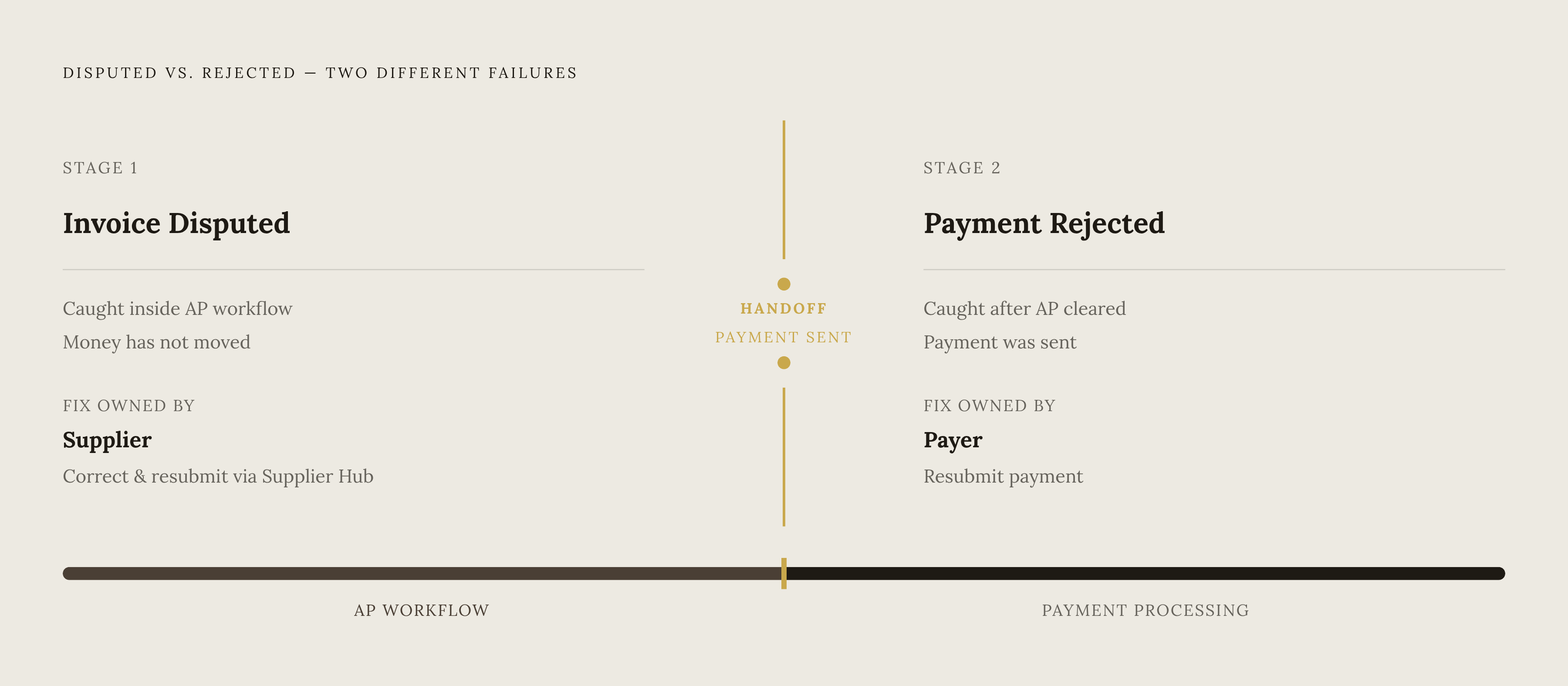
Most delayed payments trace back to one habit: treating every rejection like the same disease and reaching for the same cure. That's the fastest way to burn a week chasing the wrong fix. An invoice that's "Disputed" and a payment that's "Rejected" fail at different moments, for different reasons, and get solved by different people taking different actions.
A "Disputed" invoice never made it past the accounts payable workflow. The system catches the problem before any money moves, and the supplier gets an email laying out what's wrong and what to do about it. That's stage one, and it belongs entirely to the invoice, not the payment.
A "Rejected" payment is a different animal. By the time a payment gets rejected, the invoice already cleared AP review and a payment was actually sent for processing. Somewhere between the payer's system and the supplier's bank, the payment provider or the beneficiary bank said no. Fixing that requires the payer to resubmit, since the supplier updating their own profile does nothing to un-reject a payment that already went out the door.
Content and format errors in the invoice itself, incomplete payee setup, and missing or invalid tax forms are all invoice-level problems, caught before payment is attempted. Payment-level rejections happen after approval, when the payment provider or bank bounces the transaction. There's a third wrinkle that doesn't sit neatly in either bucket: certain profile field changes can quietly erase banking details or invalidate tax forms the payee already submitted, which can sabotage an invoice that's already sitting in process. The distinction between invoice-level and payment-level failures mirrors a broader challenge in collections work generally: operational blockers that look identical from the outside often need completely different remedies, and mixing them up wastes days of back-and-forth that didn't need to happen. Tools built to track payment commitments across email, phone, and text help both sides of a transaction see which stage a payment is actually stuck at, and Invoice Butler combines AI-driven follow-up with human review to work through exactly this kind of multi-stage resolution problem. The sections ahead walk through each cause, in the order a supplier is most likely to run into them.
Resolving a "Disputed" invoice: content and format errors
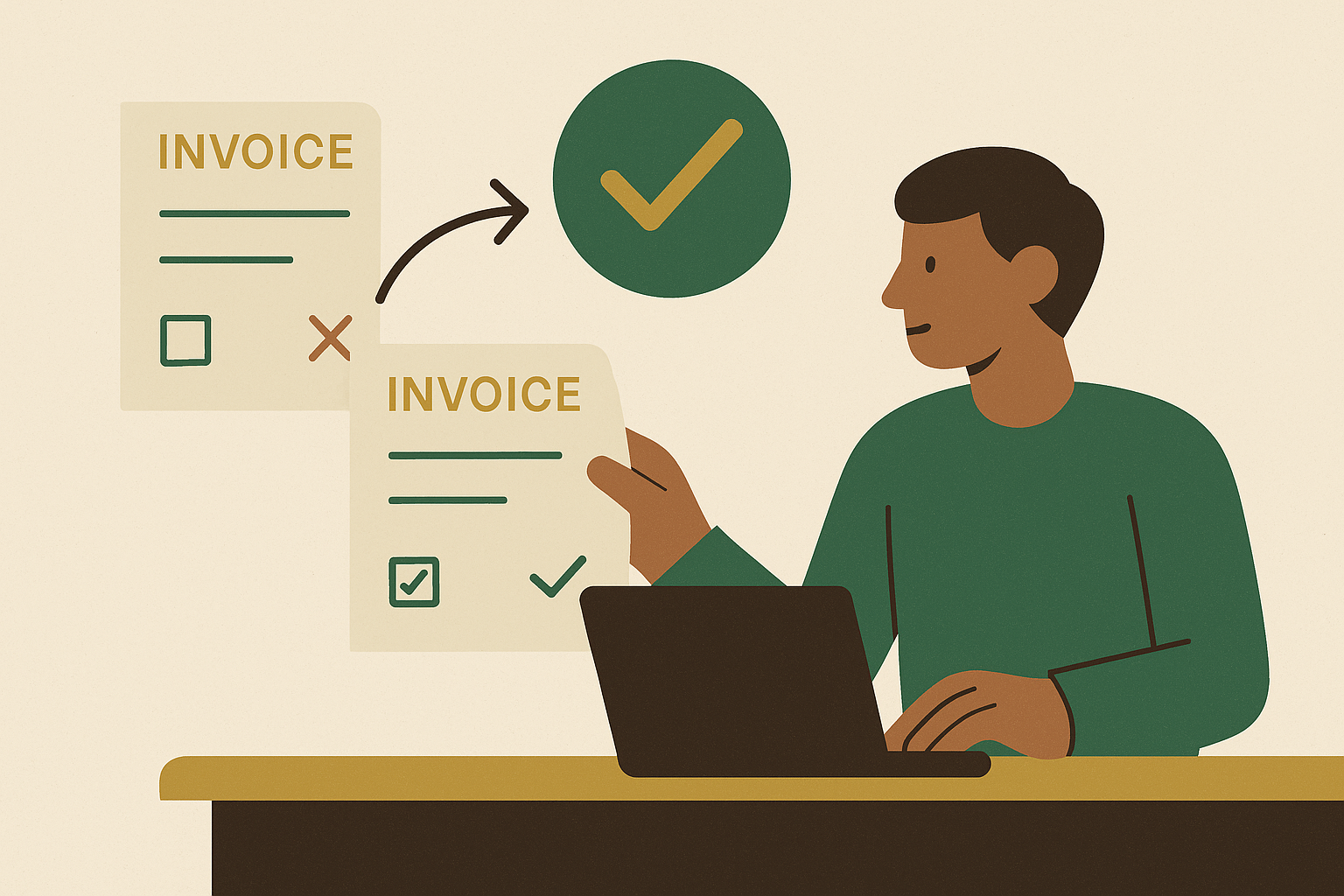
An invoice marked "Disputed" comes with an explanation, not just a status change. The supplier gets an email spelling out the specific problem and the specific fix, and that email usually asks for an update or additional information to be submitted through the Supplier Hub. The usual suspects behind a dispute are an invoice that isn't in the format the payer requires, a required data field left blank, or a mismatch the AP workflow or the PO-matching step can't reconcile on its own.
The fix starts with reading the dispute email in full before touching anything, since the email names the exact field or formatting issue that needs to be corrected. From there, the invoice gets corrected using whatever updated template or data the email specifies, because freelancing a fix based on a hunch tends to just produce a second dispute. The corrected invoice then goes back through the Supplier Hub as a fresh submission; disputed invoices don't get patched in place, they get resubmitted from scratch with the updated template. For anyone working under a PO-backed workflow, the invoice needs to match the purchase order exactly before it goes back in, because a PO-match discrepancy will trigger the same dispute a second time, and nobody wants to open that email twice.
Resolving incomplete payee setup: registration, payment method selection, and banking details
Plenty of invoices get disputed for a simpler reason than a formatting error: the payee tried to get paid before finishing the paperwork. Half-finished setup still leaves the payee unpayable, no matter how clean the invoice itself looks.
Step one is contact information. The Address page needs to be filled in with a name and address that match the payee's bank records exactly, and Tipalti won't accept a P.O. box or an in-care-of address (APO and FPO boxes are the one exception). Step two is payment method. A preferred method gets selected from a dropdown, and which methods are available depends on the country and the funding currency involved; options across the platform generally include ACH, wire transfer, Global ACH or eCheck, a digital payments account, paper check, and prepaid debit card. If the default method isn't available for a given country, the system automatically falls to the next option in a fixed order, so there's no need to panic if the first choice is grayed out. Step three is banking details: payment currency, the name on the account, the bank name, and a SWIFT or routing code, along with the country. For international payees, Tipalti validates SWIFT and IBAN codes against a large set of global banking rules, which catches typos before they turn into a bounced payment down the line.
Incomplete setup tends to go unnoticed until an invoice actually hits the system and gets kicked back, by which point a delay that could have been avoided has already started. Payees benefit from treating the Supplier Hub's setup checklist as a front-loaded task. Finishing contact information, payment method, and banking details before the first invoice goes in eliminates a whole category of rejections before they happen.
Resolving missing or invalid tax forms
A missing or invalid tax form is its own named cause of rejection, separate from banking details, and it can also show up out of nowhere if a profile field change invalidates a form that was already accepted. The right form depends on who the payee is: a W-9 for US persons and entities, a W-8BEN for foreign individuals, or a W-8BEN-E for foreign entities.
Tipalti's tax wizard walks payees to the correct form using a large rule set combined with TIN matching, and the wizard itself is reviewed by an independent accounting firm and built to meet IRS requirements. Once the right form is identified, the process is just clicking "Complete form" and submitting it. Payees working with a payer based outside the US may need to provide a local tax or VAT ID instead, since payers in a wide range of countries collect these in place of a US form, and the right move there is confirming with the payer which local form actually applies.
A tax form that's already been approved can sometimes get locked, and the payee can't simply reopen and resubmit it through the Supplier Hub. Hitting that wall doesn't mean something was done wrong; it means the form needs to go through the payer, since a locked form after prior approval is one of the cases where self-service in the Hub runs out of road.
Resolving the hidden trap: profile field changes that silently erase banking details and void tax forms
Someone updates their address, and suddenly they can't get paid, with no warning at the moment they made the change. The cause is a short list of profile fields that carry more weight than they look like they should: first name, last name, company name, contact address country, payment details country, and phone number. Editing any one of these can erase previously saved banking information, invalidate a tax form that was already accepted, or both, all without any pop-up or confirmation flagging the consequence at the time.
It's a documented system behavior with a known workaround, and the fix is straightforward once the cause is identified. If a supplier who was previously getting paid without issue suddenly sees a rejection after updating their profile, the first move is checking whether any of those specific fields were touched recently. From there, the repair uses the same steps covered earlier: banking details get re-entered in full on the Payment Details tab as though onboarding from scratch, and the appropriate tax form gets resubmitted through the Tax Forms tab. The one extra step here is notifying the payer that profile details changed, so they can confirm the payee is payable again before resubmitting any invoices that got caught in the middle.
Resolving a payment-level rejection after an invoice has already been approved
A payment-level rejection is a different stage of the process entirely, with a different person holding the fix. By the time a payment shows "Rejected" rather than just delayed, the invoice has already cleared the AP workflow and a payment was already sent out for processing, so the supplier updating their own profile won't undo a rejection that happened downstream of approval.
On the supplier side, the move is logging into the Supplier Hub, reading the payment notification email for the explanation of what went wrong, and correcting banking or payment details if those are identified as the cause. After that, the next step is contacting the payer directly, since the supplier's own correction doesn't automatically resubmit anything. On the payer side, the fix starts with clicking the relevant payment showing "Rejected" status to see the rejection reason listed on the payment order itself. From there, the payer has a "Resubmit Invoice" option to send the corrected invoice back through for payment. The payer can also review the rejection reason and tell the supplier if the issue requires a call to their own bank.
Because the payment had already been sent for processing once, a fee may have been charged on that attempt, and the supplier could receive a lower amount than the original payment called for. If that happens, raising it with the payer is the right move. Admins can also edit an already-approved bill on the payer's side using the built-in Retract function, which sends the bill back to "Pending AP action" status so it can be corrected and resubmitted for approval. This is a documented platform feature, not a workaround someone discovered by accident.
The supplier can't resolve a payment-level rejection alone. They can fix their own banking details, confirm their tax forms, and update their profile, but only the payer can actually resubmit the payment. That's a handoff point with two clearly defined roles, and understanding which side of that handoff a supplier is standing on saves a lot of wasted follow-up emails.
A few situations go beyond what the Supplier Hub can fix on its own, and recognizing them early saves a supplier from looping through the same steps without results. Contacting the payer directly is the right call when a tax form is locked after prior approval and won't let the supplier resubmit, when a payment-level rejection needs the payer to act, when an invoice vanishes from the portal because it's sitting in "Under Review," or when a batch payment scenario means the payer might not even know a specific vendor's payment failed until the vendor brings it up. Contacting Tipalti support directly makes more sense for unclear sync errors the Supplier Hub doesn't explain, trouble editing or reprocessing an invoice, or questions about why a transaction fee showed up on a rejected payment. Tipalti offers email support daily from 6:00 AM to 6:00 PM Pacific, live chat on weekdays from 6:00 AM to 2:00 PM Pacific through the yellow question mark icon in the Resource Center, phone support daily from 6:00 AM to 6:00 PM Pacific at +1 800-305-3550, and a Knowledge Base, along with a dedicated Payee FAQs page covering payment status, banking, and tax questions without needing to file a ticket.
That batch payment blind spot points to a gap that sits on the payer's side of the desk, not the supplier's. Finance teams processing payments in batches often have no alert system flagging that one vendor's payment silently failed inside the batch, and the first sign of trouble is a phone call from that vendor asking where their money went. Invoice Butler is built around closing exactly that kind of visibility gap, so a payer isn't finding out about a failed payment from the vendor who didn't get paid.